Identify Weaknesses in Active Directory
Identify the Password Policy
Some of the attacks you launch will involve stealing login credentials and using them on other workstations or servers. Your attempts may be unsuccessful because the login credentials could have changed. You’ll need to be particularly vigilant about the company’s password policy. In fact, if you enter the wrong password, the account could be locked.
The password policy for an Active Directory environment allows for several actions to be taken:
Lock (temporarily or not) an account after a certain number of failed login attempts.
Require a minimum length and complexity for passwords.
Set the password expiration time.
Identifying the password policy will allow you to fly under the radar by avoiding locking accounts inadvertently. When I first started, I used to rely on a tool to retrieve user passwords in a company, but the tool didn’t take the password policy into consideration. As a result, I ended up locking dozens of accounts, which stopped several employees from working. Fortunately, I was able to provide the client with a script to instantly unlock those accounts. Sure, mistakes are a learning opportunity, but it would be better to avoid traumatic situations like this!
To retrieve the default password policy, you can run the Get-ADDefaultDomainPasswordPolicy utility in a PowerShell console.
PS C:\> Get-ADDefaultDomainPasswordPolicy

ComplexityEnabled           : True
DistinguishedName           : DC=medic,DC=ex
LockoutDuration             : 00:10:00
LockoutObservationWindow    : 00:30:00
LockoutThreshold            : 3
MaxPasswordAge              : 90.00:00:00
MinPasswordAge              : 1.00:00:00
MinPasswordLength           : 7
objectClass                 : {domainDNS}
objectGuid                  : dae14cb7-a84e-4d1d-8490-27399d6fbad5
PasswordHistoryCount        : 24
ReversibleEncryptionEnabled : False
This password policy requires a password to have at least seven characters (
MinPasswordLength) and enforces a minimum complexity with theComplexityEnabledparameter. Within a 30-minute period (LockoutObservationWindow), the account will be locked after three failed login attempts (LockoutThreshold). It will be automatically unlocked after 10 minutes (LockoutDuration). Finally, the password must be changed at least every 90 days (MaxPasswordAge).
It’s important to keep these parameters in mind when attempting to log in with stolen accounts!
Map Active Directory
For the final step in the reconnaissance phase, you must map the Active Directory environment itself. It groups together a large number of objects (users, computers, groups, containers, GPOs, etc.), and each of them can have specific permissions over the others.
By default, all domain users can read all the information in Active Directory. With an unprivileged account, you can list all domain users, the groups they belong to, the permissions of these users and groups, the attributes of all these entities, and much more. Due to this complexity, there is a lot of potentially sensitive data that is accessible to everyone- and which can be used as hidden attack paths.
Sensitive Information in Active Directory
Every object has attributes, some of which may be used by administrators who believe they are the only ones to have access to them.
The first important piece of information for you is the object names. Servers are often explicitly named to make it easier for administrators to identify them. You’ll often see names like “SQLSRV,” “FILER01,” or “INTRANET.” With this information, you’ll more easily be able to identify key servers and machines to target.
In addition, several attributes may be filled in and may contain sensitive information. This is especially common with the “description” and “comment” attributes, which can contain more detailed information about certain elements, including temporary or non-temporary passwords.
During pentesting, I frequently find a service account password in the object’s “description” field. When I send the following command from a PowerShell console, it provides me with a quick overview of users and computers with a non-empty description field:
PS C:\> Get-ADObject -LDAPFilter "(|(ObjectClass=user)(ObjectClass=computer))" -SearchBase "DC=MEDIC,DC=EX" -Property * |  where description -ne $null | Select Name, Description, ObjectClass

Name           Description                                         ObjectClass
----           -----------                                         -----------
Administrator  Administrator user account                  user
Guest         Guest user account                         user
krbtgt          Service account for the Key Distribution Center user
Lucie Poirier  Temporary password: Welcome123                 user
The ldapdomaindump tool on Linux also allows you to collect information on the Active Directory, including the list of users and their description in the domain_users.html file.
ldapdomaindump -u ‘medic.ex\pixis’ -p P4ssw0rd dc01.medic.exPrivileged Groups
In an Active Directory environment, there are built-in groups that have elevated privileges. All members of these groups will inherit these privileges. Therefore, it is important to familiarize yourself with these groups so you can identify which users to target in your attacks. The three main groups are the following:
Enterprise Administrators: This is the highest level administration group. In a forest with several domains, it will automatically be added to each domain’s administration group.
Domain Admins: This group exists in each domain and is the local administrator of all the domain’s workstations.
Administrators: This group also exists in each domain. It has elevated privileges over all domain operations, including the domain controllers.
There are other privileged groups as described in Microsoft’s documentation, which I recommend you read for more information.
Are there a lot of privileged groups? It’s a lot of information to remember, and you mentioned various kinds of objects and specific permissions. How do I know who has permissions to do what? How do I progress with my attack?
To answer these questions, I’m going to tell you about a tool that has helped to improve security in Active Directory environments. It’s called BloodHound.

BloodHound is a tool that lets you map an Active Directory environment by displaying it as a graph. This map uses the power of graph theory to reveal attack paths that would otherwise have been difficult, if not impossible, for you to detect.
The purpose of this tool is to analyze an Active Directory environment by enumerating the various objects in the environment (users, computers, groups, etc.) and linking them together with relationships. For example, if a user pdevaux is a member of the helpdesk group, this user will be linked to the group by the MemberOf relationship.
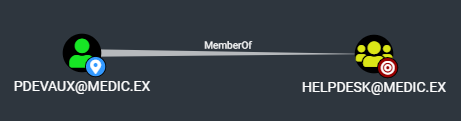
This provides a clear visualization of group membership, but there’s a lot more that the tool can do. You can also see that the helpdesk group is part of the RDPUsers group, so the pdevaux account is also part of this group through inheritance.

And that’s not all! If you ask for a list of all the groups that pdevaux belongs to, you’ll find that they belong to many others!
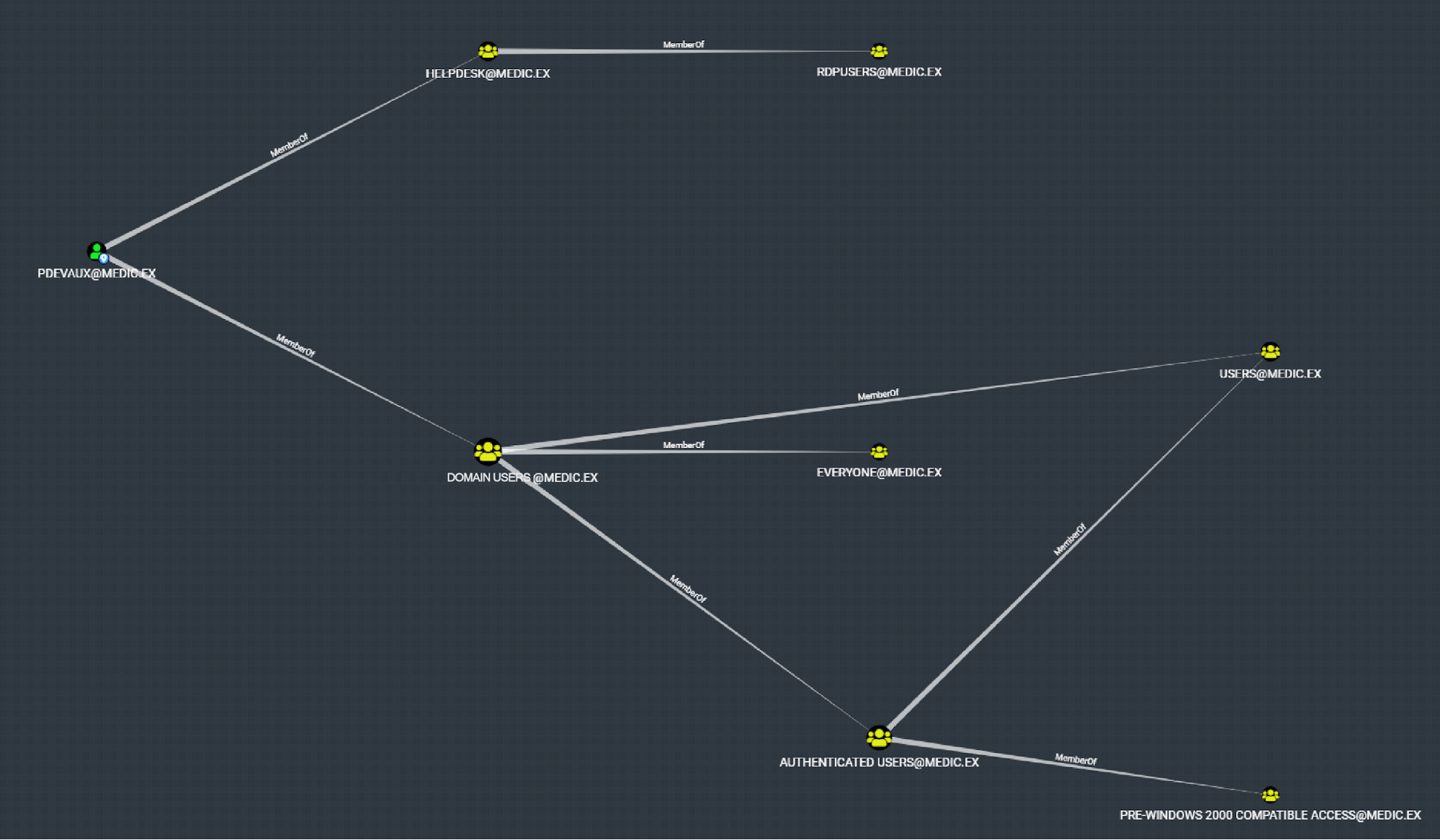
There are, of course, many other relationships between objects, including relationships showing that one object is the administrator of another, one object has permission to use RDP, or the fact that a user is logged on to a machine.
I suggest you take a closer look at this tool in the video:
To collect Active Directory information, you need to use SharpHound from an authenticated session. If you’re on a domain machine, you can run the tool without any additional parameters. However, if you’re on your attack machine, you’ll first need to assign yourself as a domain user using the RunAs utility.
runas /netonly /user:medic.ex\pixis cmd.exeOnce you’ve opened the console as the user, you can use SharpHound.
.\SharpHound.exeWhen the tool has finished collecting information, it generates a ZIP file that can be imported into BloodHound.
Many other tools can be used to make a first pass on an Active Directory environment in order to identify the elements we’ve already covered, and some of them can do much more. PingCastle is a tool created by a French-based developer, that generates comprehensive reports on the condition of your Active Directory environment.
Let’s Recap!
Discovering the Active Directory allows you to prepare your attack plan. Several approaches can be considered:
Learning about the company’s password policy in order to target your attacks to discover passwords
Extracting privileged accounts from all objects to better prepare your attack targets
Identifying potential attack paths
Congratulations, you’ve now completed this part on the enumeration phase! Using the information you’ve gathered so far, you have all the tools you need to carry out the attacks that you’ll learn about in the second part. These attacks will allow you to take control of machines and users, elevate your privileges, move laterally across the network, and retain access once these elements have been compromised. That’s quite a lot, isn’t it? Let’s go!
