Automate Application Installs with Snapins

In this chapter, you will learn how to deploy applications to deployed machines with Snapins. In FOG, a Snapin is a small program or script that you can push to a client machine after an image is deployed, which lets you install applications automatically or run specific tasks.
Create Snapins
To illustrate this course, deploy the following two applications:
OpenVPN, in MSI format: OpenVPN Windows 64-bit MSI Installer
Iperius Remote, in EXE format: Iperius Remote Windows 64-bit
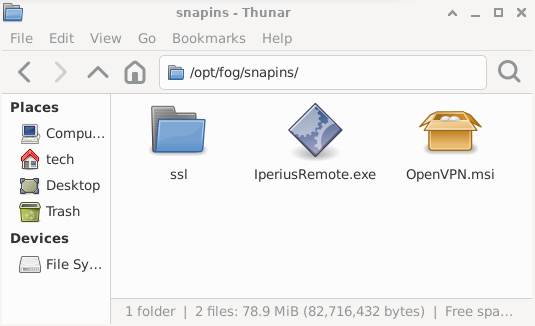
Download them to the FOG server and move them to the /opt/fog/snapins/ folder.
You can rename the file to make it simpler. Avoid spaces and special characters.
Use this command, after switching to root with “su -”, to rename and move OpenVPN:
mv /home/tech/Téléchargements/nom.msi /opt/fog/snapins/OpenVPN.msi
Do the same for Iperius Remote.
In the FOG web interface, go to the Snapins menu, then click Create New Snapin.
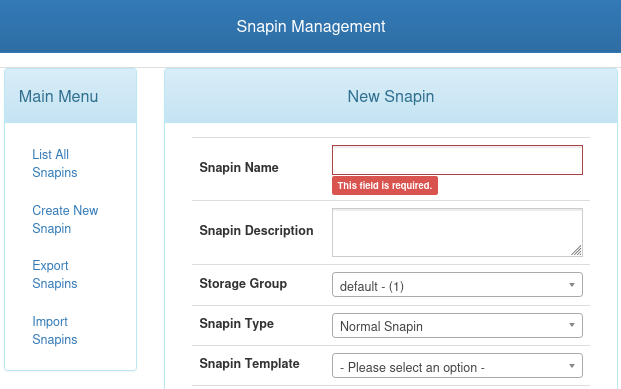
To automate application installations with Snapins, use a command line with the exact parameters you need.
For an MSI file, which is the package type used by Windows Installer, use the “msiexec” command followed by the options you need.
Start by creating the OpenVPN Snapin, which uses the MSI format. For this application, the command breaks down like this:
msiexec.exe: calls the Windows Installer program
/i: tells Windows Installer to perform an installation
File.msi: the exact file name, including its extension
/q: runs the installation in quiet mode
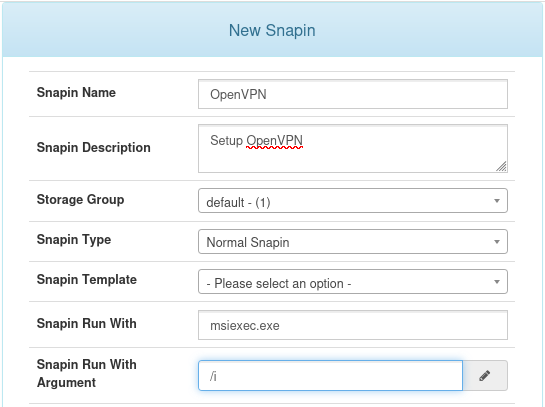
When you create the Snapin in FOG, give the application a name and, if you want, a description. In the “Snapin Run With” field, enter “msiexec.exe”. Then, in the next field, “Snapin Run With Arguments”, enter “/i”.
Open the drop-down menu in the “Snapin File (exists)” field, which lists all software stored in /opt/fog/snapins. Select OpenVPN.msi.
In the field just below, “Snapin Arguments,” enter the “/q” option.
Make sure the “Snapin Enabled” checkbox is selected and clear the “Reboot after install” checkbox. You do not need it for OpenVPN.
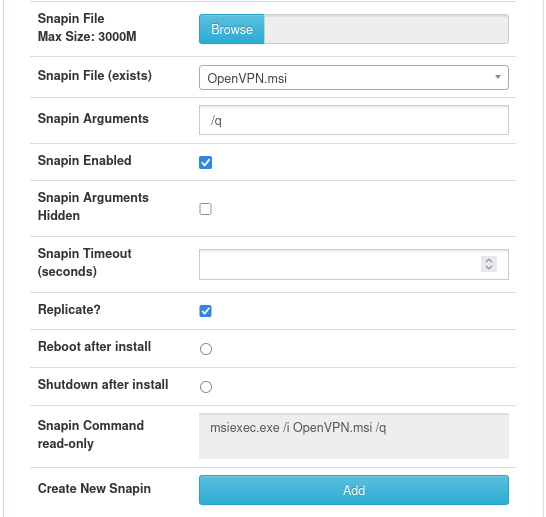
You can see the full command in the “Read-only Snapin Command” field. It should be “msiexec.exe /i OpenVPN.msi /q”. Click the “Add” button to finish.
Create another snapin for Iperius Remote. This application uses an EXE installer, which is easier to deploy because the command needs only one option: “/VERYSILENT.” This option runs a fully silent installation without showing the progress bar to the user.
In FOG, configure the fields like this:
Name et description du logiciel : au choix
Snapin File (exists): IperiusRemote.exe
Snapin Arguments: /VERYSILENT
Snapin Enabled: selected
Reboot after installation: not selected
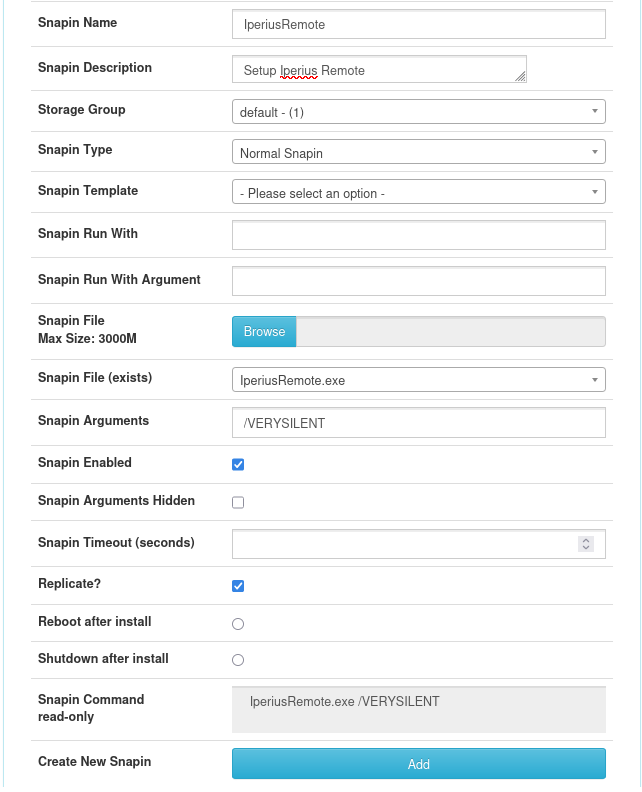
The final command will be “IperiusRemote.exe /VERYSILENT”. Click Add, then return to the Snapins menu to find both available applications.
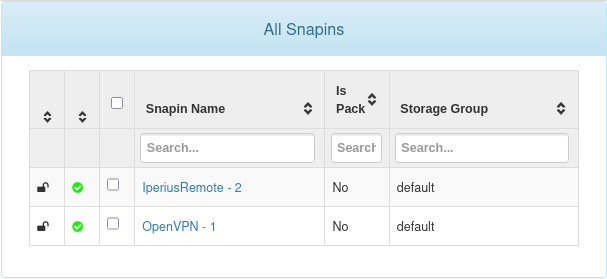
Your applications are now ready to be deployed to machines managed through FOG and its client.
Deploy Snapins to a Windows 11 Client Machine
As the target machine, use the Windows 11 system from your master machine that you deployed in the previous chapter and that already has the FOG client installed and working.
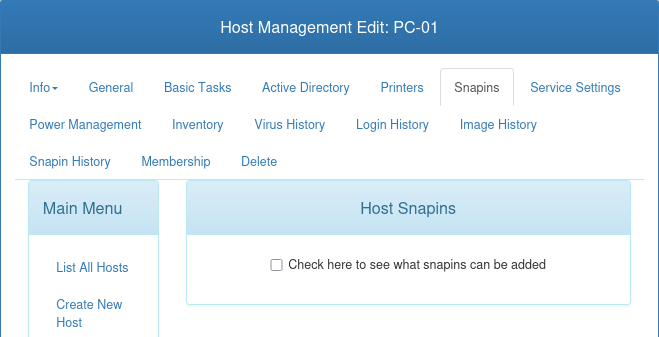
Still in the FOG web interface, go to the Hosts menu, list all machines, and click the name of the target machine, which must be powered on. In my case, it is PC-01. Open that computer’s Snapins tab and select the checkbox in the center to display the list of available snapins.
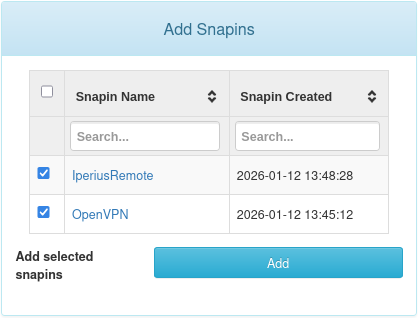
Select both applications and click Add.
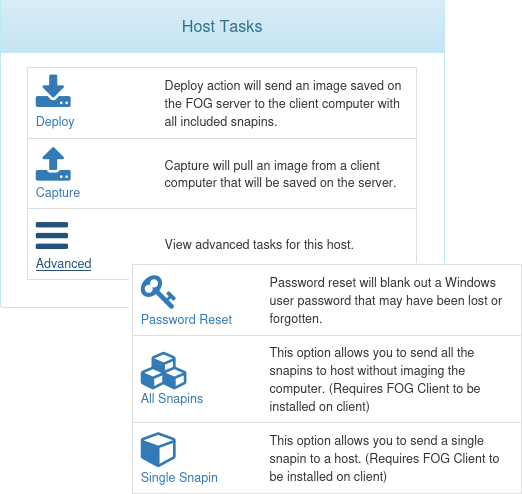
Go to the Basic Tasks tab and click Advanced. In the list below, click All Snapins, then confirm the task so it runs immediately.
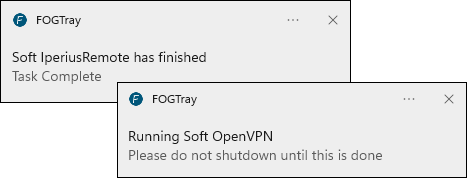
On the target machine, after a few seconds or minutes depending on the FOG client settings, you will see FOG client (FOGTray) pop-ups telling you that installations are running and/or have completed.
The applications will be available either directly on the desktop or in the Start menu.
You’ve reached the end of this course. Feel free to explore all the other features FOG Server has to offer!
Let's Recap!
A Snapin is an executable file used to automate installations or configurations on machines deployed through FOG.
Snapins must be stored in /opt/fog/snapins.
Deploying an application through a Snapin relies on commands and options that are specific to each application.
To deploy Snapins, associate them with the target machine and schedule an Advanced Task.
Thanks to the FOG client installed on the target machine, Snapin deployment runs automatically.
You have explored all the essential FOG features you need to scale Windows deployment. Test your knowledge now and confirm your full mastery of the process!
