Work With Multiple Virtual Environments

Create a 2nd virtual environment for another app
In the last chapter, you created a virtual environment for use with a project called demo-app . In this chapter you will create another project (and associated virtual environment) and learn how to quickly switch which project you are working on by activating its associated virtual environment.
First, change directory into the projects directory and create a new project called demo-app-2 :
~
→ cd projects/
~/projects
→ mkdir demo-app-2
You should now have both of your projects listed in the projects directory:
~/projects
→ ls
demo-app demo-app-2
Change directory into demo-app-2 and create a script called demo.py :
~/projects
→ cd demo-app-2
~/projects/demo-app-2
→ touch demo.py
~/projects/demo-app-2
→
Write the following Python code into demo.py :
import matplotlib.pyplot as plt
plt.figure()
plt.plot([1, 2, 3, 4, 5], [10, 20, 30, 40, 50])
plt.show()
As with the first project ( demo-app ), if you try and run the script then it may or may not execute successfully, depending on whether or not you have matplotlib and numpy installed in your global Python packages. If you don’t have matplotlib installed globally then you will get an error message similar to the following:
~/projects/demo-app-2
→ python demo.py
Traceback (most recent call last):
File "demo.py", line1, in <module>
import matplotlib.pyplot as plt
ModuleNotFoundError: No module named 'matplotlib'
If you do have matplotlib installed globally, your script will execute successfully and you will draw a graph:
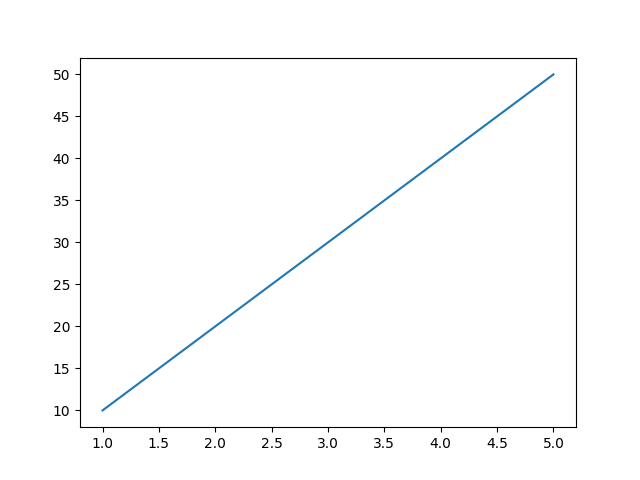
However, this is a convenient time to remind you that it is best practice to keep global Python package installations to an absolute minimum; instead, they should be installed in the virtual environment associated with each project.
Let’s create a virtual environment for demo-app-2 . Change directory to demo-app-2 and create a virtual environment as we did in the previous section. As with demo-app , we will call the virtual environment env :
~/projects/demo-app-2
→ python demo.py
~/projects/demo-app-2
→ python -m venv env
~/projects/demo-app-2
→
Activate the virtual environment and check that you have no packages installed:
~/projects/demo-app-2
→ source env/bin/activate
(env)~/projects/demo-app-2
→ pip freeze
(env) ~/projects/demo-app-2
→
Now, install matplotlib so that we can run our script:
(env) ~/projects/demo-app-2
→ pip install matplotlib
Collecting matplotlib
Using cached https://files.pythonhosted.org/packages/0d/61/b741990b429341bac1af5f5c645ee7aaa3bbe7daf3418d283c92c4b5ee82/matplotlib-3.2.1-cp37-cp37m-macosx_10_9_x86_64.whl
Requirement already satisfied: kiwisolver>=1.0.1 in ./env/lib/python3.7/site-packages (from matplotlib) (1.2.0)
Requirement already satisfied: cycler>=0.10 in ./env/lib/python3.7/site-packages (from matplotlib) (0.10.0)
Requirement already satisfied: pyparsing!=2.0.4,!=2.1.2,!=2.1.6,>=2.0.1 in ./env/lib/python3.7/site-packages (from matplotlib) (2.4.7)
Requirement already satisfied: python-dateutil>=2.1 in ./env/lib/python3.7/site-packages (from matplotlib) (2.8.1)
Requirement already satisfied: numpy>=1.11 in ./env/lib/python3.7/site-packages (from matplotlib) (1.18.4)
Requirement already satisfied: six in ./env/lib/python3.7/site-packages(from cycler>=0.10->matplotlib) (1.15.0)
Installing collected packages: matplotlib
Successfully installed matplotlib-3.2.1
You are using pip version 10.0.1, however version 20.2b1 is available.
You should consider upgrading via the 'pipinstall--upgradepip' command.
(env)~/projects/demo-app-2
If you run the script again now, it should execute successfully:
(env) ~/projects/demo-app-2
→ python demo.py
(env) ~/projects/demo-app-2
→
We generate the same graph again:
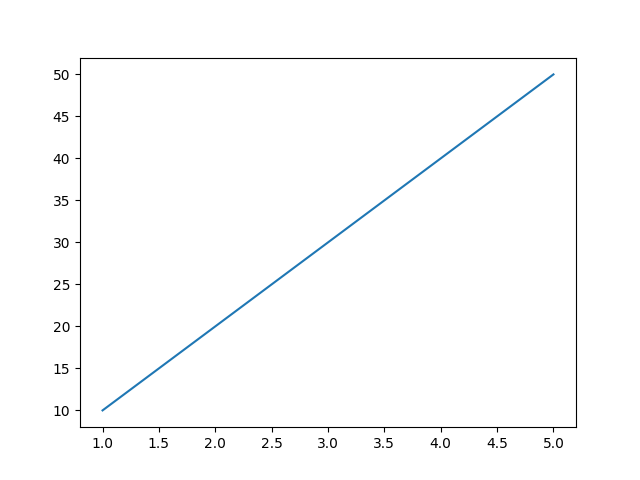
Congratulations, you should now have successfully created your 2nd virtual environment and run an application using it! 😎
If you are having difficulties or want to recap, watch this screencast:
Switch between virtual environments
Now, let’s say that we want to quickly switch between working on our demo-app and demo-app-2 . We currently have the virtual environment for demo-app-2 activated. First, deactivate this:
(env) ~/projects/demo-app-2
→ deactivate
~/projects/demo-app-2
→
Now change directory to demo-app and activate its virtual environment:
~/projects/demo-app-2
→ cd ../demo-app
~/projects/demo-app
→ ls
demo.py env
~/projects/demo-app
→ source env/bin/activate
(env) ~/projects/demo-app
→
Now, when you run pip freeze you will see the packages you have installed in the virtual environment for demo-app :
(env) ~/projects/demo-app
→ pip freeze
certifi==2020.4.5.1
chardet==3.0.4
idna==2.9
requests==2.23.0
urllib3==1.25.9
It is worth noting that you don’t strictly need to deactivate one virtual environment before activating another one. Activating a virtual environment will perform an override if you are already in a virtual environment.
For example, we currently have the virtual environment for demo-app activated. We can change directory to demo-app-2 , activate its virtual environment and run the script as desired - no deactivation is required!
(env) ~/projects/demo-app
→ pip freeze
certifi==2020.4.5.1
chardet==3.0.4
idna==2.9
requests==2.23.0
urllib3==1.25.9
(env)~/projects/demo-app
→ cd ../demo-app-2/
(env)~/projects/demo-app-2
→ source env/bin/activate
(env)~/projects/demo-app-2
→ pip freeze
cycler==0.10.0
kiwisolver==1.2.0
matplotlib==3.2.1
numpy==1.18.4
pyparsing==2.4.7
python-dateutil==2.8.1
six==1.15.0
(env) ~/projects/demo-app-2
→ python demo.py
(env) ~/projects/demo-app-2
→
You will note that the (env) that is prepended to the command prompt remains consistent when we switch from the virtual environment for demo-app to the virtual environment for demo-app-2 . This is because the virtual environments both have the same name - env - something we will explain in more detail in the next section.
Follow the screencast below if you want to see how I demonstrate switching between virtual environments. 😁
Exercise
You are again working as a marketeer at a sales and marketing agency. Your boss has been working on two different Python projects, but now they want you to take ownership of them. Each project is still very much in its infancy! Unfortunately, your boss is out of the office today! They have, however, sent you a zip containing the two projects that they have been working on. Your job is to:
Download the two project folders/files and put them in your projects folder: p2c3s2_exercise.zip.
Create a virtual environment for each project.
Run each application (the first time you try to do this, each application will fail).
Research and install the packages that you think you might need to successfully run each application.
Successfully run each application.
Practice switching virtual environments and running each application.
Check Your Work
Watch me go through the exercise:
Let’s Recap!
In this chapter, you have learned the following skills:
Switch between virtual environments when working on multiple projects.
Activate a virtual environment while in another virtual environment.
Now that you have learnt how to work with multiple virtual environments, let’s consider what the best naming conventions are for virtual environments.