Explore the Must-Have Features
In this final chapter, I will give you a quick overview of a few key Windows 11 features, from app management to stronger security, as well as accessibility tools and the Copilot intelligent assistant.
Explore the Windows 11 Security Center
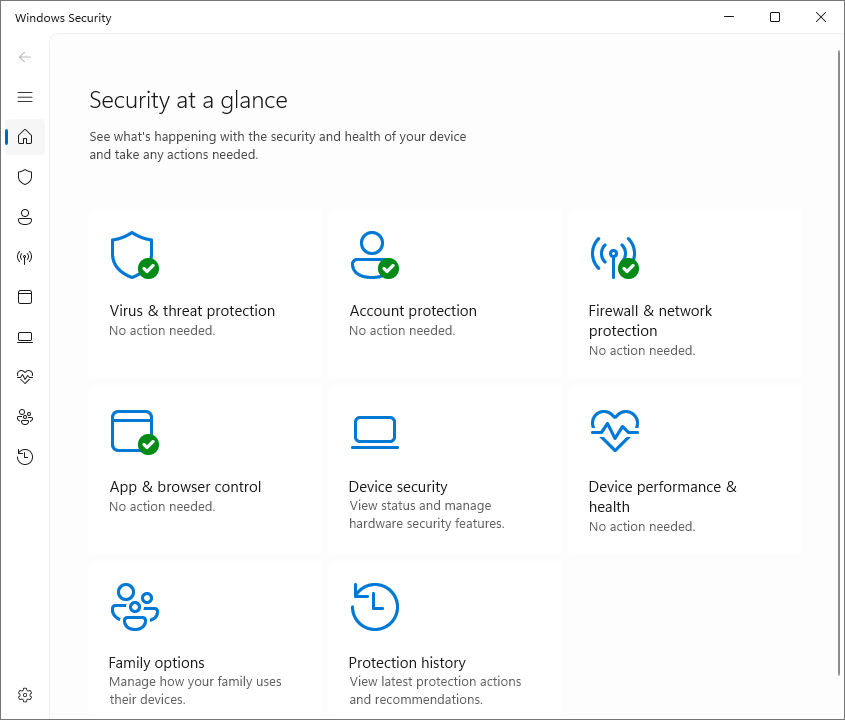
The Windows 11 Security Center is an essential interface that allows users and IT professionals to manage system protection centrally by bringing together several modules such as:
Microsoft Defender Antivirus (real-time antivirus)
Windows Firewall
Smart App Control
App & browser control
Device security
You can access the Windows 11 Security Center through Settings > Privacy & security > Windows Security or by running “windowsdefender:” (yes, including the colon at the end 🙂)
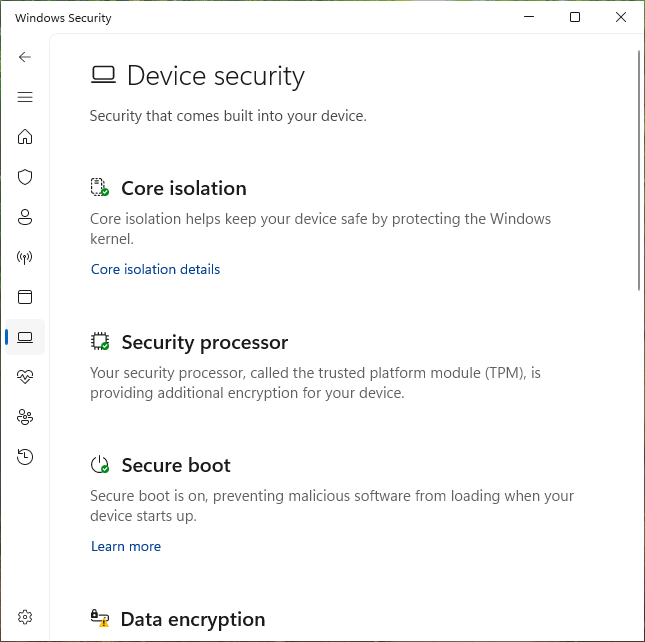
With Windows 11, several advanced security features have been strengthened, including:
The requirement to use a TPM 2.0 (Trusted Platform Module), which strengthens hardware security by protecting encryption keys and sensitive data.
Virtualization-based security (VBS), a feature that isolates critical processes to prevent malicious attacks.
Secure Boot, which ensures that only trusted software runs at startup.
The Zero Trust Architecture principle, a security model that includes stronger authentication, access controls, real-time threat detection and blocking, and process isolation features such as memory integrity and virtualization to protect data.
Good security management ensures optimal protection against cyber threats and keeps the system stable.
Manage Apps Through the Microsoft Store
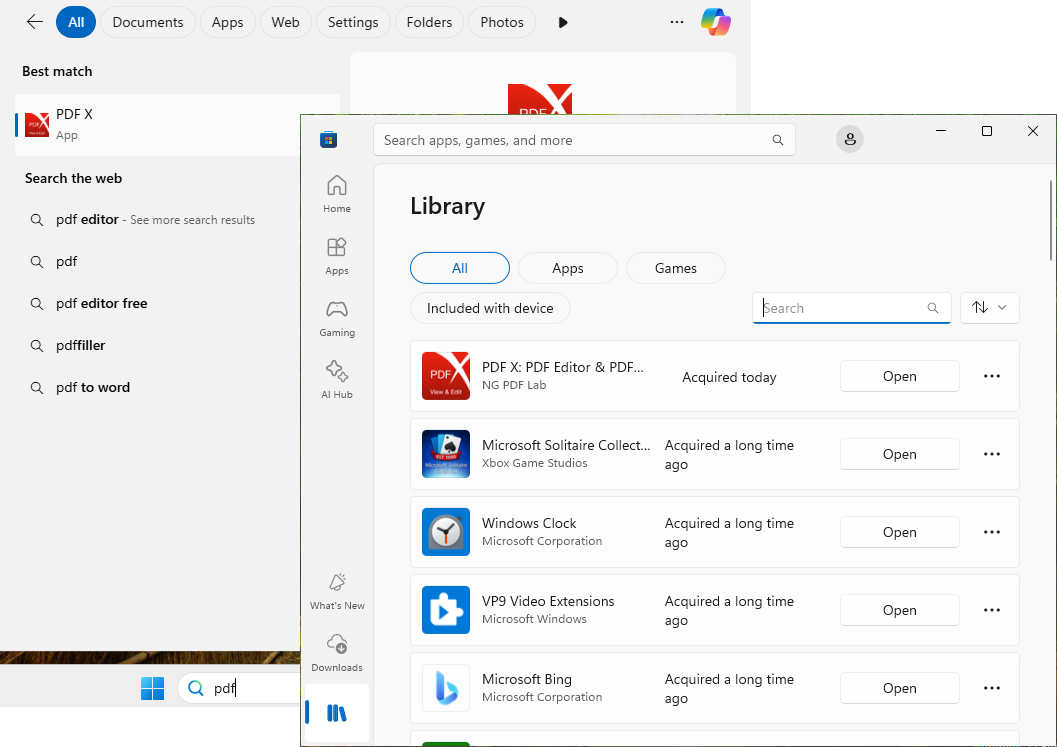
The Microsoft Store is the built-in Windows platform for searching, downloading, and managing apps. It centralizes approved software, ensuring secure installation and automatic updates. Because it is integrated into Windows, it makes app management across devices easier and simplifies use and maintenance.
You can find it in the Start menu, on the taskbar, or by running “ms-windows-store:” (do not forget the colon at the end).
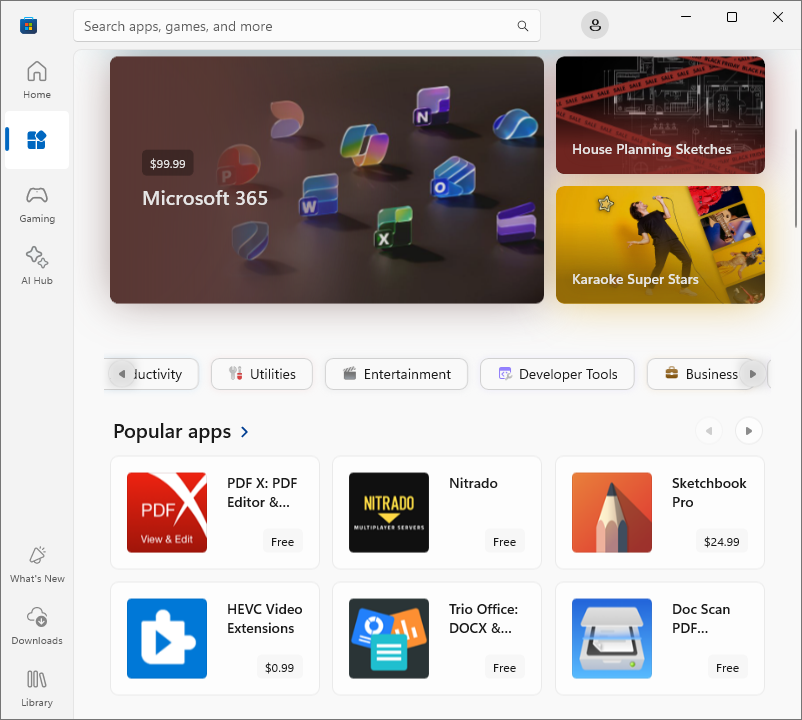
To install an app in Windows through the Store, click the app you need, then click Install or Get. After the download, the app will be available directly on your computer through the desktop or Start menu, and also from the Microsoft Store library.
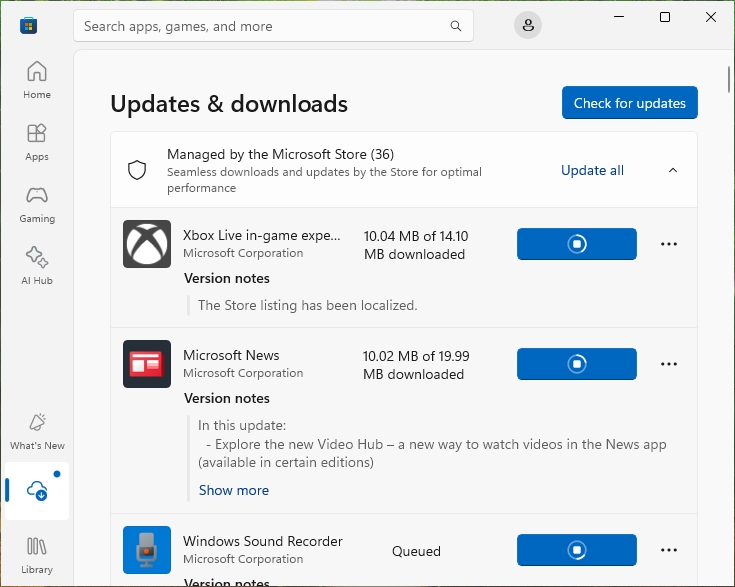
There is also a dedicated area in the Microsoft Store for managing app updates.
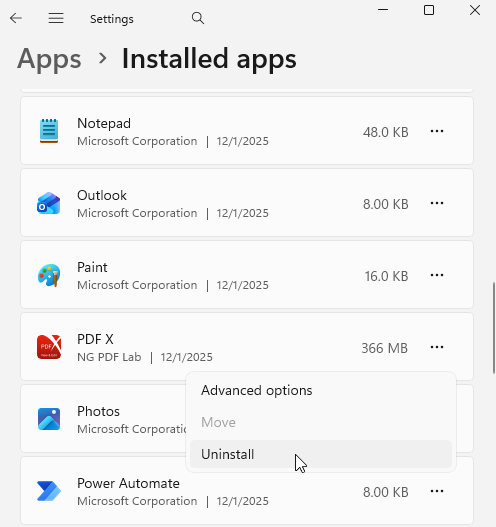
However, to uninstall an app, you need to go through Windows Settings > Apps > Installed apps.
Find the app in the list > Click the “...” at the end of the line > Uninstall
Explore Accessibility Tools
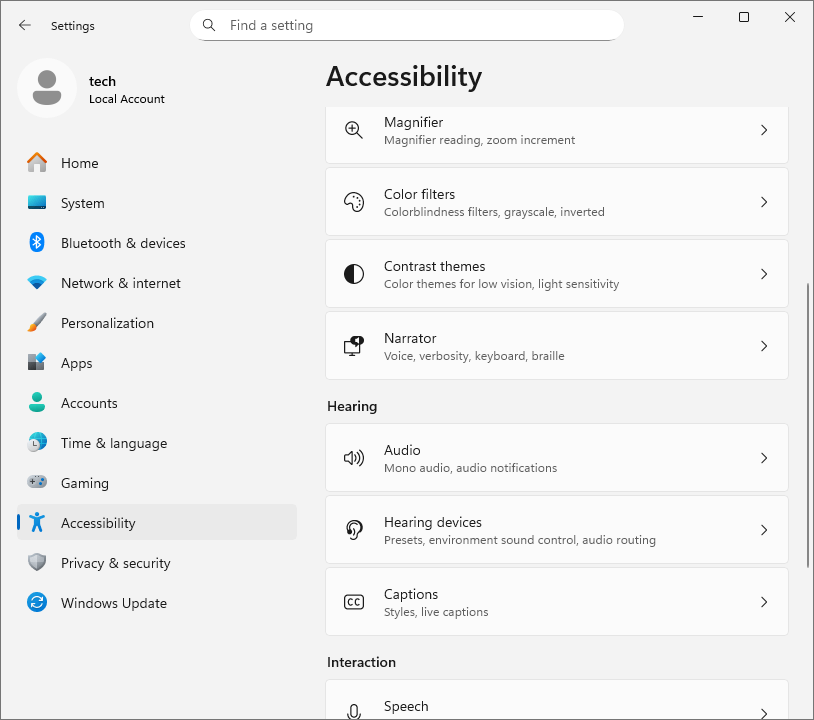
Windows 11 includes several useful accessibility improvements. Here are a few updates worth highlighting:
Live Captions: This feature generates real-time captions for any audio content, such as online videos or calls, making information more accessible for people who are hard of hearing.
Improved Narrator: Narrator, which reads the screen aloud, now offers more natural voices for a smoother, more pleasant reading experience.
Dark mode and high contrast: Windows 11 provides advanced contrast and color settings that improve text and interface readability, especially as a complement to dark mode.
Voice Access: This option lets you navigate and control the system using only your voice, without a keyboard or mouse, which can be helpful for users with mobility impairments
Other tools such as text size adjustments, Magnifier, and the on-screen keyboard are still available. Accessibility settings are grouped together in a dedicated section of Windows Settings, making navigation more intuitive. You can also open them by running “ms-settings:easeofaccess”.
Use Copilot, Microsoft's AI
And finally, do not hesitate to use Copilot, Microsoft's AI, which you can find in the Start menu, on the taskbar, or in the Microsoft Store.
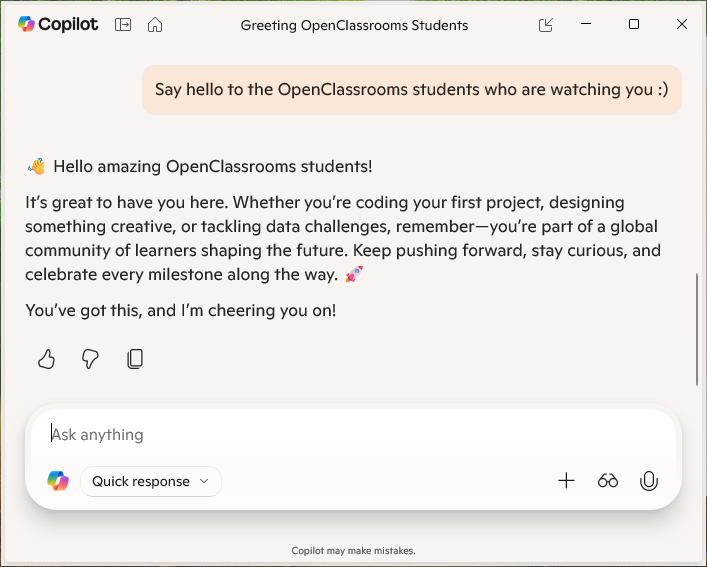
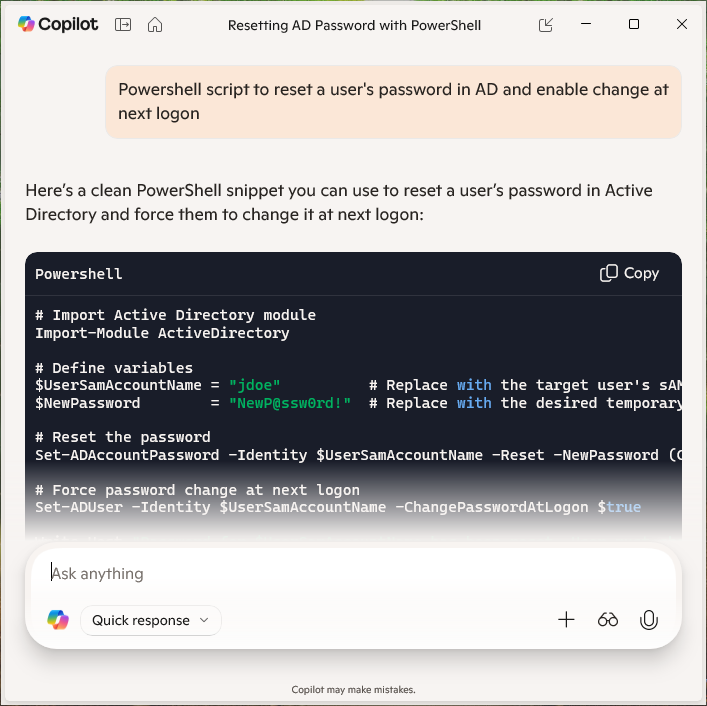
Copilot can give you advice on almost anything! Just do not expect it to give you the winning lottery numbers... (I tried 😞). On the other hand, it can explain technical details, guide you through writing or editing text, and even help with your learning.
You now know how to install Windows 11 and complete its basic configurations. Feel free to explore its many features so you can make the most of it and optimize the user experience!
Over to You!

You handed the Windows 11 virtual machine over to your manager, and she is very happy with your work! Because security is very important to the company, she gives you one last request.
Mission
On your manager's virtual machine, perform the following configurations:
Install the KeePassXC password manager from the Microsoft Store
Use Copilot to get a PowerShell command that checks the status of Windows Defender Firewall
Once you are done, use this answer key to check your work.
Let's Recap!
Windows 11 includes several useful built-in features:
The Security Center: it includes Windows Defender, the firewall, and threat protection tools. It is a key component for securing data and the system.
The Microsoft Store: it lets you install and manage apps, but it does have some limitations, especially the fact that not all apps can be uninstalled directly from the platform.
Accessibility tools: Windows 11 includes notable improvements such as Live Captions, Voice Access, and more intuitive access to accessibility settings, which are now grouped together.
Microsoft's AI: Copilot is integrated into Windows 11 to help users with everyday tasks, whether for writing, research, or system management.
