Install Docker

You present your analysis to Liam, who is impressed by how quickly you’ve grasped the subject. Your conclusion is clear: because the future Libra application is a public-facing web service subject to unpredictable load variations, it fits perfectly into the ideal use case for containers. The decision is made—Libra will be containerized.
Prepare Your Machine to Use Docker
Docker is built on a client/server architecture. A typical Docker installation includes the following components, commonly referred to as the “Docker Engine” (see previous chapter):
Docker Daemon: The server component. It manages all Docker operations on the host, including container creation, execution, and monitoring.
Docker Client: The command-line interface (CLI) used by users to interact with Docker. It is the client-side component of the architecture.
Docker can be installed in several ways depending on your operating system. Here are the main methods:
Linux package installation: Uses native package managers such as APT, YUM, or DNF.
Installation via Docker Desktop: For Windows and Mac, Docker offers Docker Desktop, an application that includes both the Docker Daemon and the Docker Client.
Manual installation: Download and configure the Docker binaries—useful for custom setups or unsupported versions.
And what is Docker written in?
The Docker project is primarily written in the Go language, a general-purpose language widely used in modern infrastructure software. As an open-source project, its source code is publicly available on GitHub.
As a general rule, install Docker via your package manager or Docker Desktop so you automatically receive security updates.
Install Docker on Your Machine
Linux Package Installation
1/ Update the system:
sudo apt-get update
sudo apt-get upgrade
2/ Remove any conflicting packages:
for pkg in docker.io docker-doc docker-compose docker-compose-v2 podman-docker containerd runc; do sudo apt-get remove $pkg; done
3/ Configure the official Docker package repository:
# We add the official GPG key of the Docker project
sudo apt-get update
sudo apt-get install ca-certificates curl
sudo install -m 0755 -d /etc/apt/keyrings
sudo curl -fsSL https://download.docker.com/linux/ubuntu/gpg -o /etc/apt/keyrings/docker.asc
sudo chmod a+r /etc/apt/keyrings/docker.asc

# We add the repository to the APT sources
echo \
"deb [arch=$(dpkg --print-architecture) signed-by=/etc/apt/keyrings/docker.asc] https://download.docker.com/linux/ubuntu \
$(. /etc/os-release && echo "$VERSION_CODENAME") stable" | \
sudo tee /etc/apt/sources.list.d/docker.list > /dev/null

sudo apt-get update
4/ Install Docker packages:
sudo apt-get install docker-ce docker-ce-cli containerd.io docker-buildx-plugin docker-compose-plugin
5/ Verify Docker installation:
# Display Docker version (Client & Server)
docker version
Linux? I’ll never need it…
As noted earlier, containerization has its roots in the GNU/Linux (Unix) world. Most hosting platforms run GNU/Linux hosts, so if you plan to work in this field, it’s worth getting comfortable with it now!
Windows Installation
Run the downloaded file and follow the installer instructions.
Perform post-installation operations:
After installation, restart the computer if necessary.
Launch Docker Desktop and follow the initial configuration instructions.
Check installation. Open a PowerShell or CMD terminal and run:
# Display Docker version (Client & Server): docker version.Install on Mac
Open the downloaded
.dmgfile and move the “Docker” icon to the Applications folder.Launch Docker Desktop and follow the initial configuration steps.
Verify installation: open a terminal and run:
# Display Docker (Client & Server) version
docker version
Over to You!

Context
Following your last meeting with the CEO, you’ve been asked to evaluate how difficult it will be for future developers on the Libra project to install Docker.
You’ve convinced me that Docker is essential! But will our teams be able to master it quickly? We have deadlines to meet if we want to reassure our investors…
Instructions
Identify your operating system (Linux / Windows / Mac).
Follow the Docker installation steps for your machine.
Check Your Work With This Example
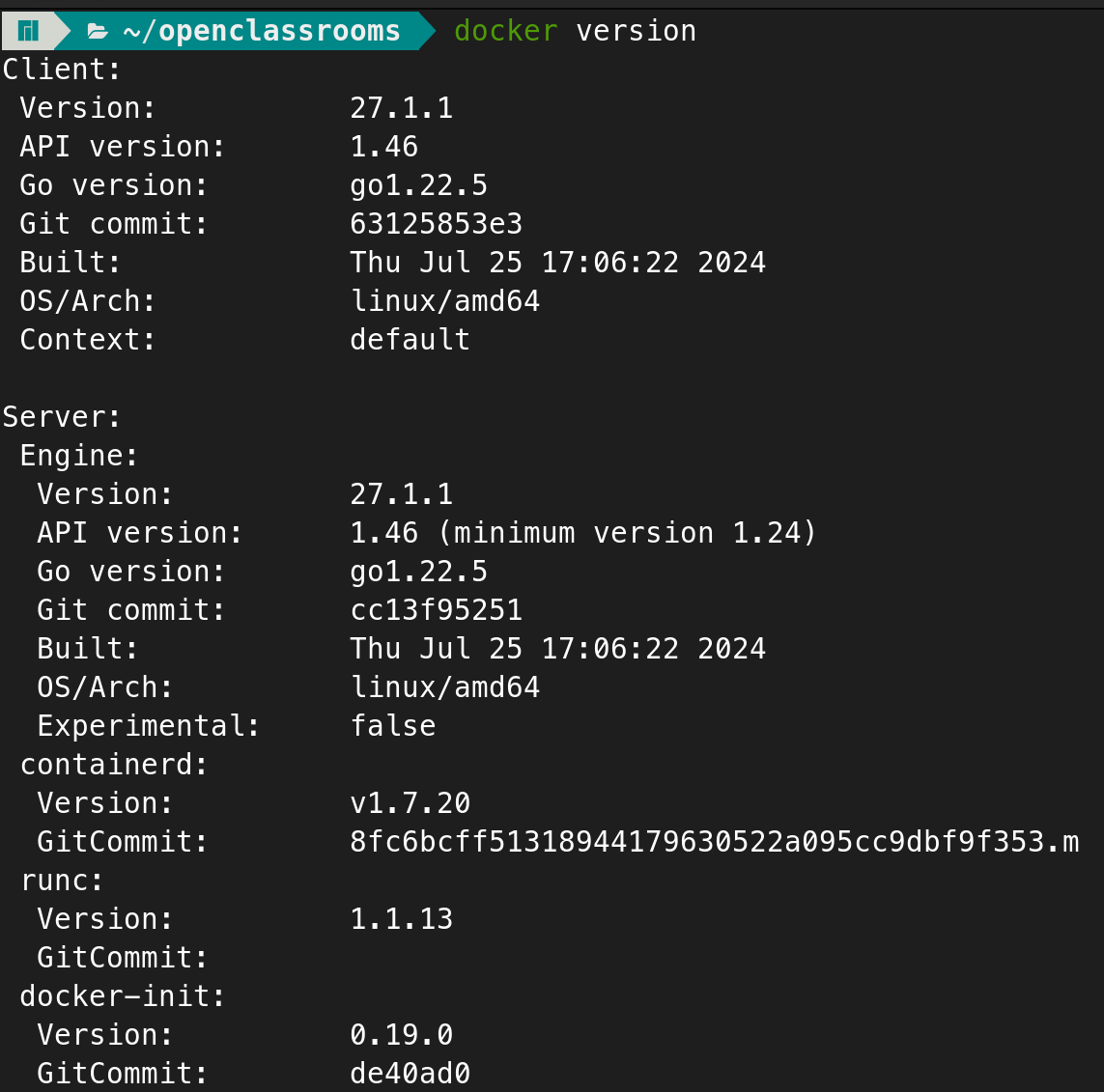
Make sure that running the commanddocker versionreturns an output resembling the following:
Client:
Version:            <VERSION_NUMBER>
API version:        <API_VERSION>
Go version:         <GO_VERSION>
Git commit:         <COMMIT_REFERENCE>
Built:              <BUILD_DATE>
OS/Arch:            <OS_ARCH>
Context:            default

Server:
Engine:
Version:            <VERSION_NUMBER>
API version:        <API_VERSION>
Go version:         <GO_VERSION>
Git commit:         <COMMIT_REFERENCE>
Built:              <BUILD_DATE>
OS/Arch:            <OS_ARCH>
Experimental:       false

containerd:
Version:            <VERSION_NUMBER>
GitCommit:          <COMMIT_REFERENCE>

runc:
Version:            <VERSION_NUMBER>
GitCommit:

docker-init:
Version:            <VERSION_NUMBER>
GitCommit:          <COMMIT_REFERENCE>
Summary
Docker is built on a client/server model.
The Docker Daemon (
dockerd) manages all container operations.The Docker Client is the command-line interface used to communicate with the daemon.
Docker installation varies by operating system: on Linux it uses native package managers, while on Windows and Mac, Docker Desktop provides everything you need.
Docker is now installed on your machine. It’s time to learn how to use it in practice!