Discover the Value of an IT Backup Plan

Define a Backup
Imagine this situation: you’re on your first assignment as a system administrator, IT technician, or even operations analyst for EthicalIT, an IT services company.
Congratulations—it’s always a stressful start, but also a very rewarding one.
You open your incident management tool this morning and find a message from Mickael, the HR Manager:
Hello, I’m reaching out because I was working on the application files for this week’s new employees joining the health insurance plan, and I accidentally deleted all the supporting documents from every employee file.
I have an audit next week! This is a disaster! Can you help me?
Unfortunately, this kind of situation happens far too often. Today it’s about missing documents; tomorrow it could be the 3D models of the new offshore wind turbine your company is developing.
If starting a new assignment feels stressful, imagine now having to explain to Mickael that the last backup was taken three months ago.
That sounds a bit exaggerated. Today, all companies have reliable backups… don’t they?
In a perfect world, yes. But unfortunately, even today, the risk of data loss is still very real, for a number of reasons:
Human error: accidental deletion of an important file, incorrect multi-file selection, or the wrong process launched at the wrong time.
Sabotage: a careless or malicious employee deleting their work before leaving, or data theft and deletion by an external party.
Hardware failures: a failing hard drive or the loss of a server.
Ransomware: malware that silently encrypts your data and then demands a ransom in exchange for a possible—and often false—recovery.
Now that you have a clearer understanding of the scope of the risk, let’s look at how you can protect yourself against data loss by implementing reliable and consistent backups.
Okay, I want to learn how to protect my data by backing it up—but what exactly is a backup?
That’s an excellent question.
In an IT context, a backup is the process of duplicating data in order to secure it in case the original data is lost.
In English, the term “backup” is used both for the action itself and for the resulting copy of the data.
Data can take many different forms:
Simple files, such as text documents or images.
Configuration files, such as network switch configurations.
Virtual machines, for example servers hosting applications or services.
Any other type of data required for the company to operate properly.
Once the original data (the source) has been backed up, if it is later deleted or modified, the backed-up data (the copy) can be restored to return to its original state. This process is known as a restore.
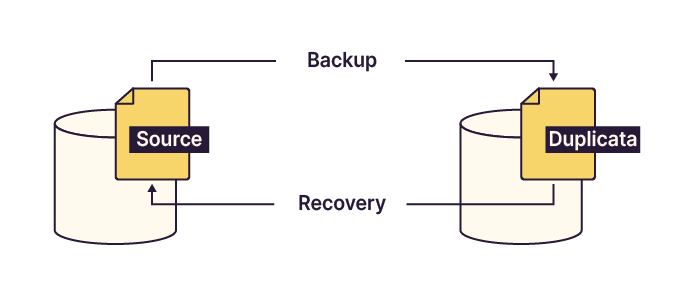
So during a backup, we copy the file to another location, and during a restore, we copy it back from that location?
Exactly. If you’ve understood this principle, you’ve grasped a key concept that will allow you to implement reliable and secure backups.
In our situation, being able to answer Mickael like this would be reassuring for everyone:
Mickael: Hello, I accidentally deleted all the supporting documents from the employee files while working on health insurance applications. It’s a disaster! Can you help me?
You: Hi Mickael. Don’t worry—our backups are up to date, and I can restore all the documents from last night.
Mickael: Thank you so much! I was already imagining having to ask everyone for them again.
Understand the Backup Cycle
Like many IT operations, backups follow a logical and sequential process. This structure makes it easier to automate backups and restores, as well as to analyze issues when something goes wrong.
As you’ve seen, a backup operation is fundamentally a data duplication process.
If you were to perform backups manually, you would need to copy files every day—before leaving work, for example—to their backup destination. This approach is time-consuming, tedious, and significantly increases the risk of error.
At a high level, the steps involved in creating a backup are:
Copy the data from its original location.
Store it on the backup storage medium.
Repeat until all required data has been backed up.
For a restore, the same process applies, but with the source and backup locations reversed.
Depending on the organization, you’ll encounter several backup architectures:
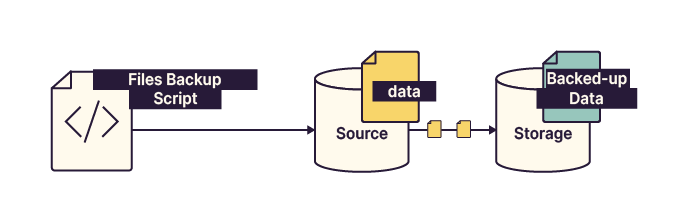
Direct backup: Suitable for small organizations or low data volumes. It may rely on an in-house script or tools such as the Windows Backup Scheduler.
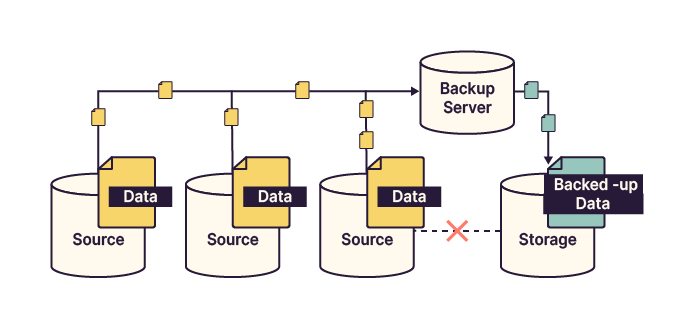
Server-based backup: Managed by a dedicated backup server. Data no longer flows directly from source to storage but passes through the backup server, which controls access to the storage space.
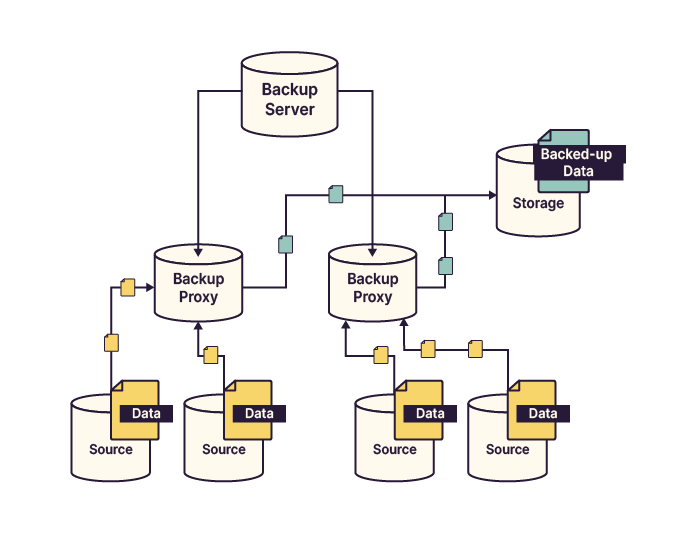
Proxy-based backup: Similar to server-based backup, but with additional proxy servers that handle data transfer and load balancing. The backup server supervises all proxy operations.
Here’s a summary table comparing these architectures in terms of fault tolerance, security, scalability, and implementation cost.
Architecture | Fault tolerance | Direct link between source and storage | Suitable for large infrastructures | Implementation cost |
Direct backup | Low | Yes | No | € |
Server-based backup | Medium | No | Moderately | €€ |
Proxy-based backup | High | No | Yes | €€€ |
Now that you have a clearer idea of what a backup is, let’s take a closer look at the elements of a backup plan.
Discover the Elements of a Backup Plan
So, backing up is the first step—but do I need to back up everything the same way?
Rather than answering yes or no, let me ask you another question: do you prioritize all support tickets the same way?
As you’ve probably guessed, the answer is no.
Think back to Mickael: are employee reimbursement documents as critical as photos from the from the last team event?
Of course not, the photos are clearly not vital for the company. But how do I assess how important different data sets are?
You’ve identified the first key factor: data criticality.
However, this isn’t the only consideration when building a backup plan. Backup frequency is another essential element.
Backups must be performed at the right time and with the right frequency to avoid losing days or even weeks of work.
You’ll also need to decide which storage media to use. This choice should take into account data retention requirements and the existing infrastructure.
To ensure reliable, long-term backups, you must select the right tool. This could be a custom script, built-in operating system tools, or third-party backup software.
Not all backups work the same way. Some copy all data every time, while others save only changes made since the last run. These are known as incremental and differential backups, and each has its place.
Finally, backups must be regularly tested and validated. This involves setting up verification plans and performing restore tests.
A well-designed backup plan should therefore include:
The data to be backed up and its criticality
Backup frequency
Storage media
The appropriate backup tool
The backup method
Backup verification methods and scheduling
We’ll explore each of these elements step by step in the following chapters.
Summary
There are many reasons why data loss can occur—never be overconfident.
A backup is a copy of data stored on another medium. A restore reverses the process by copying the backup back to its original location.
Backups must always be adapted to the data being protected and to the organization’s structure.
Backups that are not regularly tested cannot be considered reliable.
Now that you understand the fundamentals, it’s time to take a closer look at the different backup methods.
