Identify the Scope of Your Intervention

Respect the Backup Policy
Successfully resolving Mickael’s file restoration request wasn’t just the result of strong technical skills.
It was also because you knew how to apply them to implement—or at least properly use—a robust backup system.
And above all, it was made possible by a thorough functional and technical analysis carried out upstream.
You were able to take into account Mickael’s legal constraints as an HR manager, as well as those of every other role within the company.
The outcome of this analysis is a document that should be the cornerstone for any backup administrator: the backup policy.
What exactly do we define in a backup policy?
Strictly speaking—nothing. The backup policy is not written by us; it is applied by us.
A backup policy is usually defined by company management, in close collaboration with the CIO and IT experts, to ensure that it is both feasible and appropriate.
It is the backup policy that determined which HR supporting documents had to be backed up, and that defined, for example, that customer website databases would only be retained for two years.
The backup policy is not limited to defining which data is kept and for how long.
More broadly, it represents the set of rules and resources a company puts in place to address everyday needs—such as restoring data after accidental deletion—as well as exceptional situations like cyberattacks, natural disasters, or hardware failures.
It also enables private companies and public organizations to meet regulatory requirements specific to certain sectors, such as healthcare, banking and insurance, or defense.
A backup policy typically includes:
The data to be backed up
Data criticality
Backup frequency
Retention periods
Long-term archiving
Security requirements
Backup strategies
You may notice that some of these elements also appear in a backup plan—and that’s no coincidence. System administrators and IT technicians rely directly on the backup policy to design and implement the backup plan.
That’s why it’s essential for all stakeholders to clearly understand the backup policy so it can be applied consistently.
Analyze the Existing Scope
One of the key advantages of service companies like EthicalIT is the ability to intervene at different client sites as needed.
Through her friend Mickael, Céline—the CEO of Coffecao—has asked you to analyze the backups in her company. Coffecao is a semi-industrial fair-trade cocoa and coffee processing group.
To assess the current backup situation, you’ll work closely with Gwenaelle, the on-site IT technician. Your first step is to ask two fundamental questions:
Is there a defined backup policy? And is there an implemented backup plan?
Based on the answers, three scenarios may arise:
Complete scope: the backup policy is clearly defined and a backup plan is implemented.
Semi-complete scope: the backup policy is partially defined and the backup plan is partially implemented—or not implemented at all.
Empty scope: no backup policy is defined, and therefore no backup plan exists.
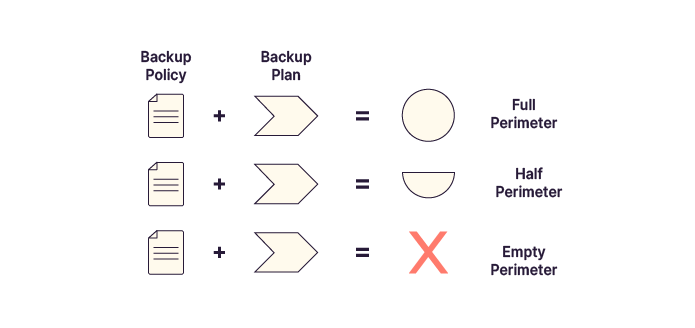
This summary table can help you quickly identify the situation:
Scope | Policy | Plan |
Complete | Defined | Plan implemented |
Semi-complete | Defined or partial | Partial or none |
Empty | Not defined | No plan |
Assessing the current state will show you exactly what’s left to do to meet your objectives.
Identify Backup Methods
Your initial analysis shows that Céline’s company does have a defined backup policy—but no real backup plan in place.
Okay, the policy is defined. Where do I start to implement the backup plan?
One of the first decisions to make is the choice of the backup method.
The most basic approaches rely on scripts or file copy commands built directly into the operating system.
Scripts are structured sets of commands, conditions, and tests designed to automate tasks. When well designed, they can provide reliable backups, including incremental backups or data compression. Essentially, a script is only as limited as its author.
However, scripts are harder to monitor in real time. While logs provide some visibility, maintaining and updating them requires specialized expertise and significant manual effort.
rsync (remote synchronization) is a widely used Linux tool that synchronizes files by copying only changes. It supports incremental and differential backups and provides advanced options such as recursion, deletion, inclusion/exclusion rules, compression, and permission management.
Its main strength—power and flexibility—can also be its main drawback, as it may be complex for advanced use cases.
robocopy is the Windows equivalent of rsync and offers similar advantages and limitations.
The right choice depends on your context. Custom scripts can be flexible but may lack robustness. They are generally better suited to smaller environments.
Use the Right Technology for Your Needs
Scripts are convenient, but what if the team doesn’t have the time to develop and document them?
In that case, you can rely on specialized backup software. These tools offer advanced features such as proxy configuration, virtual machine backups, and detailed reporting. Examples include Veeam and NetBackup, among many others.
So which solution should you choose?
These tools allow you to manage the entire backup system from a single interface, covering all elements of a backup plan:
The data to be backed up, from folders to full virtual machines
Backup scheduling and frequency
Backup methods (full, incremental, differential)
Storage media selection
Archiving and replication management
Advanced monitoring and reporting
Flexible recovery options, including point-in-time recovery (PITR)
Third-party solutions are generally better suited to larger or more complex infrastructures.
While they require additional servers and a higher initial investment, they provide a significantly higher level of service.
Hybrid approaches are also a good option. For example, a script could export daily data from an ERP or CRM system, while a specialized tool could handle the backup of those exports.
Summary
A backup policy is defined by management and provides the foundation for creating and applying a backup plan.
There are three scope levels: complete, semi-complete, and empty.
Backups can be implemented using basic scripts, advanced system tools like rsync or robocopy, or specialized backup software.
In the next chapter, you’ll design your backup plan.
